Blog

The First Coworking Space in North Carolina

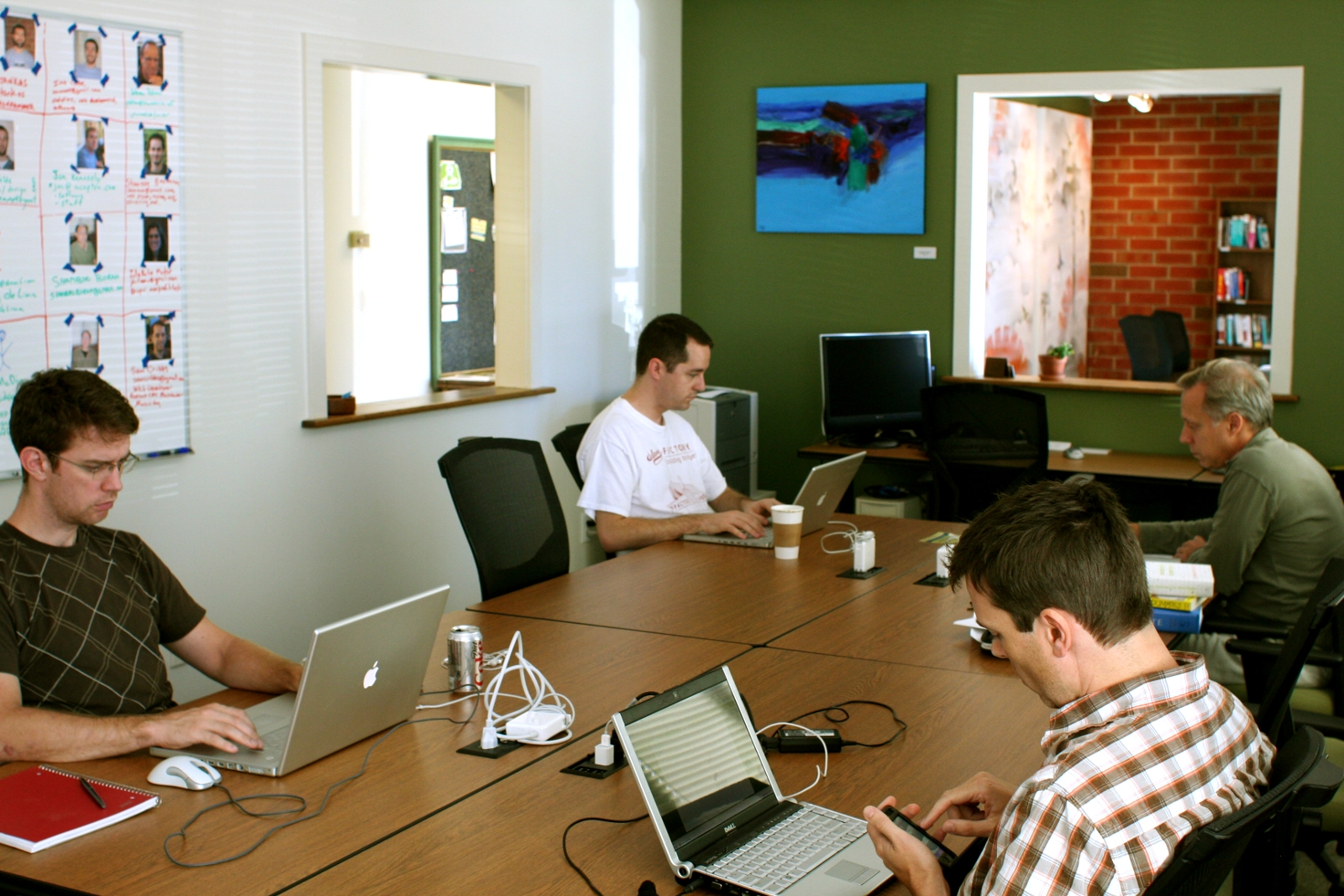
Members working together at shared tables inside Carrboro Creative Coworking in Carrboro, North Carolina, circa 2008
Shared workspace meeting area at Carrboro Creative Coworking, Carrboro, North Carolina, circa 2008.

In 2008, Carrboro Creative Coworking opened in downtown Carrboro, North Carolina. At the time, coworking was still a new idea in the United States, and shared professional workspaces were rare outside a few major cities. Carrboro Creative Coworking brought this emerging model to North Carolina, offering flexible workspace and a collaborative environment for freelancers, startups, and independent professionals.

This post gathers the public evidence documenting the planning, launch, operation, and closure of Carrboro Creative Coworking. Taken together, these records support its place as the first coworking space in North Carolina.

Carrboro Creative Coworking was founded by Brian Russell and operated in downtown Carrboro from 2008 through 2011.

Documented Public Evidence

Timeline

  • March 2008: Local press documents Carrboro Creative Coworking in development
  • August 2008: ScienceBlogs announces Carrboro Creative Coworking
  • 2008: Carrboro Creative Coworking opens in downtown Carrboro
  • 2009: Additional local reporting documents coworking activity and continued operation
  • 2011: Carrboro Creative Coworking closes after multiple years of operation

Contemporary Blog Posts from 2008–2011

During the development and operation of Carrboro Creative Coworking, additional posts were published documenting the early planning, launch, and operation of the space. These posts reflect contemporaneous discussion of coworking as it emerged in North Carolina.

View archived coworking posts:
https://corvus23.com/tag/coworking/

Why This Matters

Coworking emerged in the mid-2000s as a new model for shared professional workspace built around flexibility, collaboration, and independent work. By 2008, coworking spaces were still uncommon in much of the United States, particularly outside major metropolitan areas.

Carrboro Creative Coworking operated from 2008 through 2011 in Carrboro, North Carolina, during the early adoption period of coworking in the United States. The sources listed on this page document the planning, launch, operation, and closure of the space during that period.

This post was written by Brian Russell, founder of Carrboro Creative Coworking (2008–2011), to preserve publicly available references related to the project and its historical timeline.
How AI Helps Me Stay Professional in Online Sales (Without Losing My Mind)

Selling things online sounds easy, but anyone who’s done it seriously knows the reality: it’s a lot of tiny decisions, photo taking, descriptive writing, and odd messages. Some buyers are great. Some aren’t. Most of the headaches happen in the messaging, not the sale itself.

Over time, I’ve gotten better at handling this. One reason? I’ve been using AI to help me think through how I communicate in these situations.

Why bother?

Because writing clear, polite, professional responses over and over takes more energy than it should. And if you’re like me, someone who wants to be clear, fair, and firm but not rude, it helps to have a second brain that isn’t tired, annoyed, or in a rush.

AI doesn’t replace your judgment. It helps you slow down, think it through, and find the right words. That’s where it shines.

What It Helps Me Do

Here’s where AI has been practically useful in my online sales:

  • Clarity: When a potential buyer sends a vague or pushy message, AI helps me write responses that are professional, clear, and polite,  without opening doors I don’t want to open (like haggling in DMs).
  • Boundaries: I can quickly write and refine messages that set expectations clearly, without sounding defensive.
  • Efficiency: I keep a few AI-generated templates ready to tweak for common questions. It saves me time and makes my tone consistent.

Why This Matters

How you communicate online shapes how people treat you. Clear, polite, professional responses deter time-wasters and reassure serious buyers. AI makes it easier to keep your standards high, even when you’re tired or frustrated.

Not Magic, Just Practical

I’m skeptical by nature. I don’t think AI is going to change human nature or solve every problem. But used the right way, it’s a tool that helps you think, write, and communicate more clearly. That’s valuable, especially when small interactions add up to your reputation, your time, and your sanity.

If you’re in sales, communication, or customer-facing work of any kind, this is where AI actually earns its keep. Not by writing marketing hype. Not by pretending to be you. But by helping you show up consistently as your most professional, clear-headed self.


Disclaimer: I used the LLM GPt-4o to generate a draft of this post and to perform some of the tasks described.  Ultimately I wrote most of this post and made the final edits. It’s based on my concepts and ideas.

1964 Fender Bassman Amp, Better than Ever

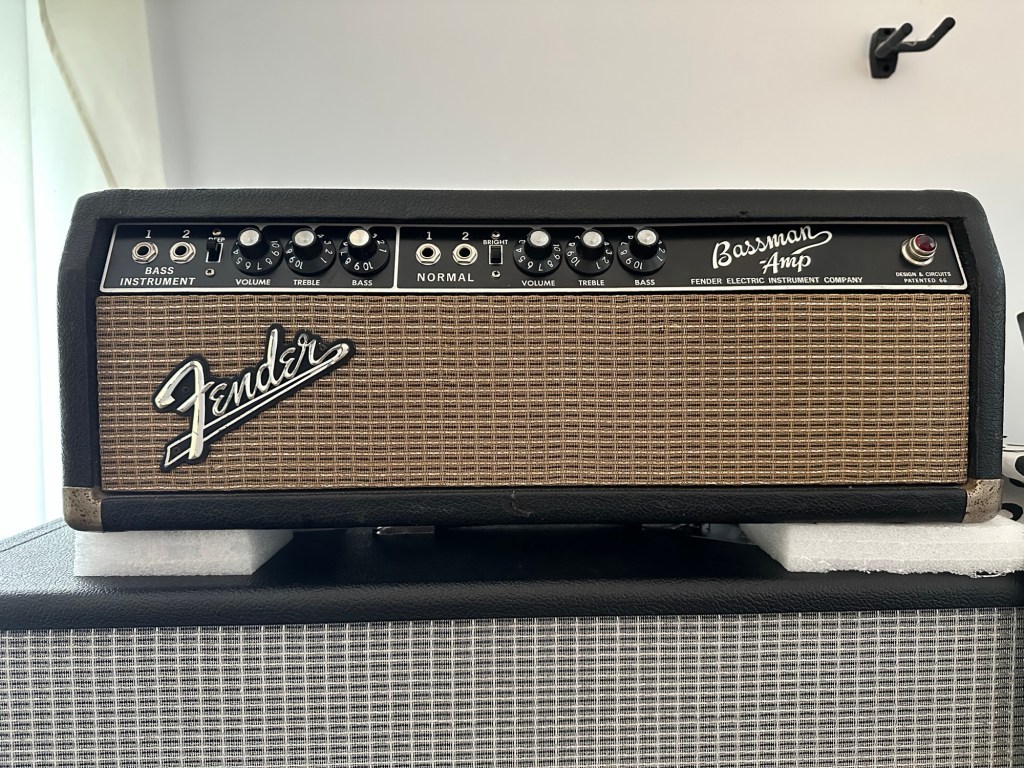
Front of a December 1964 Fender Bassman

This 1964 Fender Bassman came to me sounding good. But I knew eventually I’d want a pro to look at it. If for no other reason than to confirm it’s circuit and age. I suspected it was rare.

The amp is indeed from December 1964 and a AA864 circuit. But someone replaced most of the capacitors, resistors, etc and they did a realy bad soldering job. Fortunately Tim at Superfine Ampworks set things right!

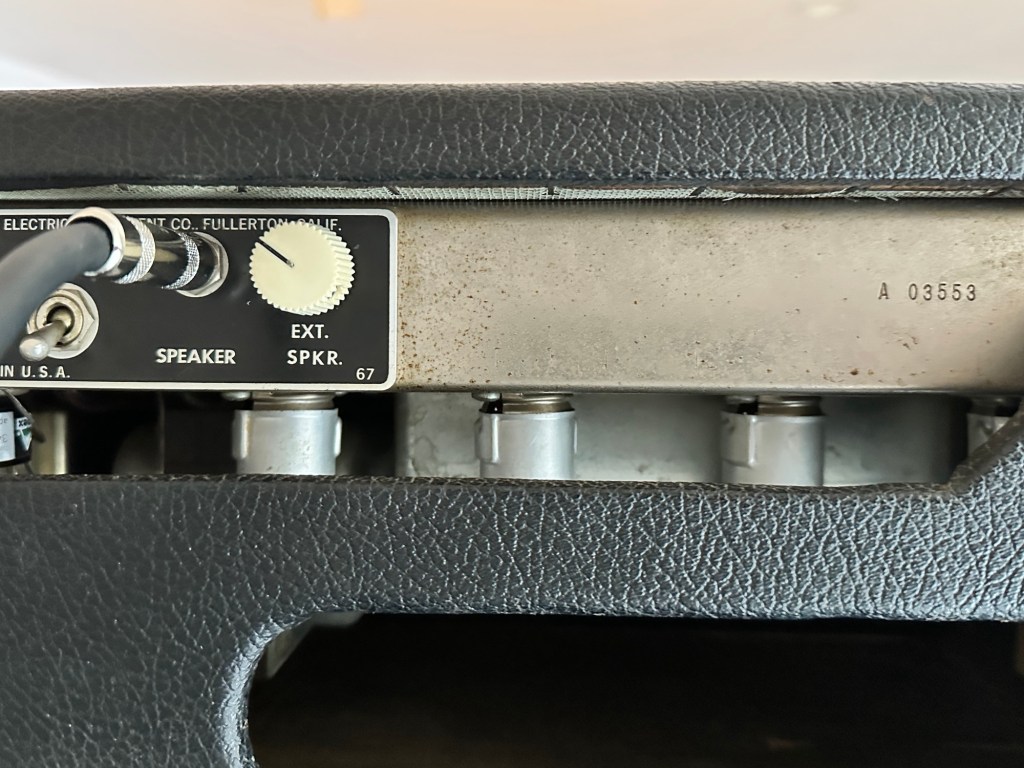
Now the normal channel sounds like an amazing Fender clean with all the power and responsiveness you’d want. With a original specs closed back cab and two Webber speakers running at 4 ohms it’s loud and clear. And the bass channel has been modified to the Superfine-tweaked version of the Marshall JMP / JCM800 Master Volume preamp circuit as found on the late 70′ and early 80’s Marshall 2203 / 2204 amps.

Master volume knob in old external speaker jack

Now I have THE ultimate super sleeper! A dream amp and my  absolute favorite. 

I have just begun to scratch the surface of what it can do. Immediately I dialed in sounds that had me writing and jamming! Just what you want from a magical musical tool. Now to try some effects with it. (Reverb tank, fuzz, boost, etc.) Though I could spend lifetimes without them and be in nirvana. Thanks Tim! 

Copilot as a Python coding partner

How I Used AI to Automate a Repetitive, Error-Prone Task


The Challenge

I needed to change the font and position of two words per page in a 435-page PDF. Each page had similar content. Let’s call the two words “Apples” and “Oranges.”

What made it tricky:

  • The two words were repeated multiple times on every page. Only some occurrences needed to be replaced. 

    In this long PDF, the phrase “Buy Bob’s apples” needed to be replaced on each page. The word “apples” was used in other phrases on different lines and did not need to be replaced there.
  • In “Buy Bob’s apples,” the font used for the word “apples” differed from the font used for the words “Buy Bob’s.” This also was the case for “Bob’s oranges are great too!”
  • Several lines moved whenever the two words were replaced. 

Trying to edit this large PDF manually, one word at a time, twice per page would have taken a while and it could induce errors. When you multitask for a living, you need solutions that reduce error because distractions happen.

My Method

To get this done I used Copilot to write and refine a Python script through prompt engineering. I worked iteratively describing what I wanted in plain language letting Copilot generate the code.

Each time I encountered a challenge, like aligning text, simulating bold, adjusting spacing, or Copilot code errors, I simply described the issue in a prompt. Copilot responded with updated code, explanations, and suggestions. 

Here are some of the tasks the script had to perform:

  • Quickly test different font styles and placements
  • Fine-tune the horizontal offset for natural-looking spacing
  • Switch between fonts and styling strategies without rewriting everything
  • Programmatically determine which was the correct “Apple” that needed a font change

This process took some time. But it gave me a deeper understanding of Python, how to run scripts locally, and how a PDF is rendered.

My Tools  

  • Python 3.9+ (Locally on my Mac OSX laptop)
  • PyMuPDF (fitz): for PDF manipulation
  • Font: Lucida Calligraphy Bold.otf

What I learned 

  • PyMuPDF gives you control over text placement and styling.
  • Custom fonts can be embedded and used precisely.
  • While free open source libraries like PyMuPDF are powerful, they can’t do everything. More complicated edits require a paid Adobe API. 
  • AI or LLM are not perfect. Although they code well, I spent a lot of time fixing mistakes. But it got done!
  • Coding this way is fun and productive.

Results

  • Processed 435 pages in minutes instead of hours
  • Eliminated manual editing risk
  • Created reusable script for future document updates
  • Improved accuracy and consistency across pages

The Finished Script, after 25 Iterations

import fitz # PyMuPDF
from datetime import datetime
# File paths
pdf_path = "bobs-fruit.pdf" # Replace with your actual PDF file
font_path = "Lucida Calligraphy Bold.otf" # Replace with your actual font file
# Generate a unique output file name with timestamp
timestamp = datetime.now().strftime("%Y%m%d_%H%M%S")
output_path = f"bobs_fruit_{timestamp}.pdf"
# Open the PDF
doc = fitz.open(pdf_path)
# Register the custom font
custom_font = fitz.Font(fontfile=font_path)
custom_font_name = "LucidaCalligraphyBold"
# Loop through each page
for page_num in range(doc.page_count):
page = doc[page_num]
instances_apples = page.search_for("apples")
instances_oranges = page.search_for("oranges")
# Combine and sort instances by vertical position
instances = sorted(instances_apples + instances_oranges, key=lambda inst: inst.y0)
for inst in instances:
# Extract the full line containing the word
text_dict = page.get_text("dict", clip=fitz.Rect(0, inst.y0, page.rect.width, inst.y1))
try:
line = text_dict["blocks"][0]["lines"][0]
full_line_text = "".join([span["text"] for span in line["spans"]])
font_size = line["spans"][0]["size"]
y_position = line["spans"][0]["origin"][1]
except (IndexError, KeyError):
continue
# Skip lines containing "apples, red delicious"
if "apples, red delicious" in full_line_text:
continue
# Remove the entire line
page.add_redact_annot(fitz.Rect(0, inst.y0, page.rect.width, inst.y1), fill=(1, 1, 1))
page.apply_redactions()
# Center the line using the custom font
line_width = custom_font.text_length(full_line_text, fontsize=font_size)
x_position = (page.rect.width - line_width) / 2
# Reinsert the full line in the custom font
page.insert_text(
(x_position, y_position),
full_line_text,
fontname=custom_font_name,
fontfile=font_path,
fontsize=font_size,
color=(0, 0, 0),
)
# Save the updated PDF
doc.save(output_path)
print(f"✅ Updated PDF saved as: {output_path}")

Disclaimer: I used the AI Copilot to generate a draft of this post and to perform the tasks I described. I heavily edited the post with the help of other humans.